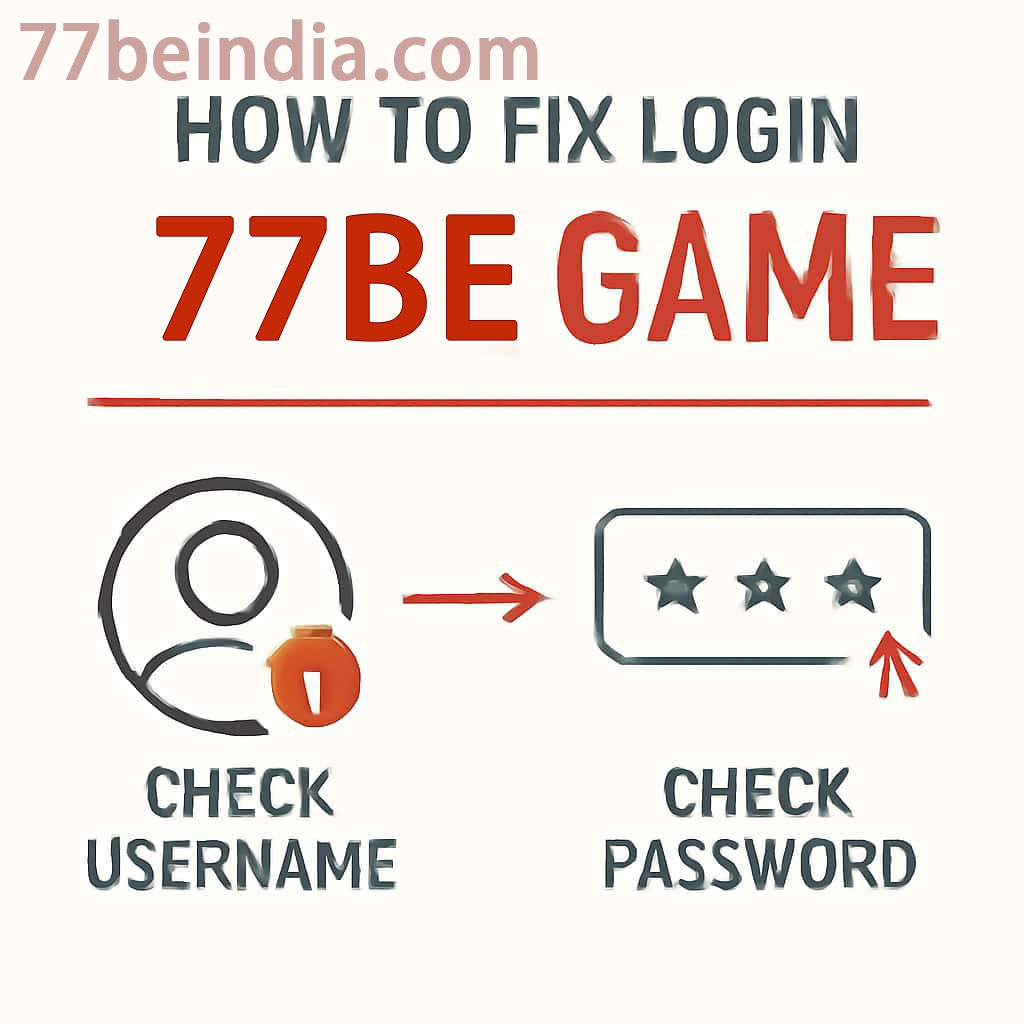
Work Out Where Sign-In Stops
Watch the point where login breaks: before the form is sent, after the credentials are accepted, or while the following page loads. Each stage suggests a different kind of fault.
Copy the warning exactly rather than describing it from memory. If possible, check whether those credentials fail everywhere or only in the browser you are using.
- Write down the full warning.
- Record when the attempt happened.
- Confirm that the login page opens.
- Read any current 77BE notice.
Check the Login Details
Type the email or username manually and watch for spaces added by copy and paste. Then enter the password without using an old saved value.
If the password is uncertain, request recovery once. Bring up the newest message, review the sender and domain, and ignore outdated reset links.
- Disable caps lock.
- Review the registered email spelling.
- Stick to the latest recovery link.
- Never share a reset message.
Clear a Stale Session
Old cookies or cached app data may keep a broken session alive. Try a private browser window first; if that works, clear data only for the 77BE site instead of wiping each saved login.
On mobile, close 77BE fully and reopen it. Verify the phone or tablet date and time are automatic, since a large clock difference may break secure sessions.
- Try a private window.
- Remove site data for 77BE only.
- Close and reopen 77BE.
- Set date and time automatically.
Connection or Account Trouble
Open another trusted site to try the connection. Pause a VPN, proxy, or filtering app for one controlled test, then turn it back on after you know whether it mattered.
Reach customer care when recovery never arrives, your profile reports an unfamiliar restriction, or the same error follows your profile across devices and networks.
- Switch between Wi-Fi and mobile data once.
- Steer clear of repeated password guesses.
- Review maintenance announcements.
- Report the precise page and time.